
Creating a Mind Map

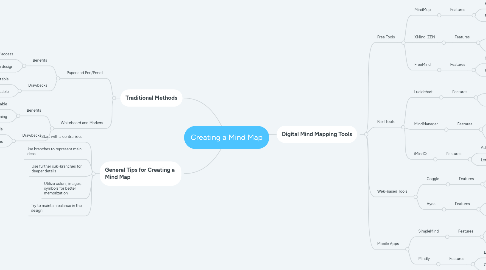
This comprehensive mind map guides you on "where can I make a mind map". Discover traditional methods such as using paper and pens or whiteboards and markers, with detailed benefits and drawbacks. Explore a variety of digital tools, including free and paid options, web-based platforms, and mobile apps like MindMup, XMind: ZEN, FreeMind, Lucidchart, iMindQ, Coggle, and Ayoa with detailed descriptions of their unique features. The roadmap also provides a set of general tips for creating impactf...

1. Traditional Methods
1.1. Paper and Pen/Pencil
1.1.1. Benefits
1.1.1.1. Ease of access
1.1.1.2. Flexibility in design
1.1.2. Drawbacks
1.1.2.1. Not easily editable
1.1.2.2. Not easily shareable
1.2. Whiteboard and Markers
1.2.1. Benefits
1.2.1.1. Easily editable
1.2.1.2. Good for group brainstorming
1.2.2. Drawbacks
1.2.2.1. Not easily shareable
1.2.2.2. Space restrictions
2. General Tips for Creating a Mind Map
2.1. Start with a central idea
2.2. Use branches to represent main ideas
2.3. Use further sub-branches for deeper details
2.4. Utilize colors, images, symbols for better memorization
2.5. Try to maintain balance in the design
3. Digital Mind Mapping Tools
3.1. Free Tools
3.1.1. MindMup
3.1.1.1. Features
3.1.1.1.1. Real-time collaboration
3.1.1.1.2. Export to multiple formats
3.1.2. XMind: ZEN
3.1.2.1. Features
3.1.2.1.1. Available on multiple platforms
3.1.2.1.2. Plenty of templates
3.1.3. FreeMind
3.1.3.1. Features
3.1.3.1.1. Open-source software
3.1.3.1.2. Simplistic interface
3.2. Paid Tools
3.2.1. Lucidchart
3.2.1.1. Features
3.2.1.1.1. Advanced collaboration features
3.2.1.1.2. Lots of integrations
3.2.2. MindManager
3.2.2.1. Features
3.2.2.1.1. Comprehensive project management features
3.2.2.1.2. Can turn mind maps into timelines, process diagrams
3.2.3. iMindQ
3.2.3.1. Features
3.2.3.1.1. Advanced presentation features
3.2.3.1.2. Lots of export options
3.3. Web-based Tools
3.3.1. Coggle
3.3.1.1. Features
3.3.1.1.1. Real-time collaboration
3.3.1.1.2. Unlimited image upload
3.3.2. Ayoa
3.3.2.1. Features
3.3.2.1.1. Task management features
3.3.2.1.2. In-app video chat function
3.4. Mobile Apps
3.4.1. SimpleMind
3.4.1.1. Features
3.4.1.1.1. cross-platform
3.4.1.1.2. No internet connection required
3.4.2. Mindly
3.4.2.1. Features
3.4.2.1.1. Easy-to-use interface
3.4.2.1.2. Optional cloud sync