

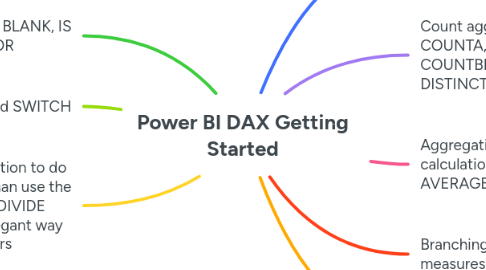
1. Error handling with BLANK, IS BLANK and ISERROR
1.1. Example: We've got [Total Sales] measure and we add a [Sales Last Year] measure and a [YoY Sales Difference] measure that subtracts the latter from the former
1.1.1. Here are the 3 measures (we will be changing the [YoY Sales Diff] after showing the problem that needs solving
1.1.1.1. Total Sales = SUM( Sales[Total Revenue] )
1.1.1.2. Sales Last Year = CALCULATE( [Total Sales], DATEADD( Dates[Date], -1, YEAR ) )
1.1.1.3. YoY Sales Diff = [Total Sales] - [Sales Last Year]
1.1.2. The problem is that we get meaningless YoY Sales Diff values when there is either no sales a year ago or there were sales a year ago but not on a given date
1.1.2.1. We see this in the visual representation of the table above, where the column chart below includes only the YoY Sales Diff
1.1.3. We can change the YoY Sales Diff measure to handle this:
1.1.3.1. YoY Sales Diff = IF( [Sales Last Year] = BLANK() || [Total Sales] = BLANK(), BLANK(), [Total Sales] - [Sales Last Year] )
1.1.4. This changes the table visual and the column chart visual
1.1.4.1. See how the column chart visual automatically filters out the blanks
1.1.5. We can also achieve the same thing using the ISBLANK function:
1.1.5.1. YoY Sales Diff = IF( ISBLANK([Sales Last Year]) || ISBLANK([Total Sales]), BLANK(), [Total Sales] - [Sales Last Year] )
1.1.6. If we were dealing with errors rather than blanks, then we could use the IFERROR function instead:
2. Logical functions IF and SWITCH
2.1. As an example of using the IF function, let's make a distinction between positive and negative YoY Sales Diff by adding two measures that branch from that measure
2.1.1. + YoY Sales Diff = IF( [YoY Sales Diff] >= 0, [YoY Sales Diff], BLANK() )
2.1.2. - YoY Sales Diff = IF( [YoY Sales Diff] < 0, [YoY Sales Diff], BLANK() )
2.1.3. We can now use the two new measures to colour a visual in a way that highlights postive vs negative
2.1.3.1. Note the green for positive and red for negative
2.2. One of the powerful ways we can use SWITCH is as a means to avoid nested IF statements
2.2.1. In this example we want to have a text label associated with YoY Sales Diff that is either "Postive"or "Negative" but in case YoY Sales Diff itself is blank, we want a third value, "N/A"
2.2.1.1. YoY Sales Diff Type = SWITCH( TRUE(), ISBLANK([YoY Sales Diff]), "N/A", [YoY Sales Diff] >= 0, "Positive", [YoY Sales Diff] < 0, "Negative" )
2.2.1.1.1. We can see the switch results in a table
2.2.2. When using SWITCH in this way, the expression parameter should be set to TRUE() and then each value is a Boolean expression with an associated result when that Boolean expression resolves to True
3. Always use DIVIDE function to do division in DAX rather than use the / operator because the DIVIDE function provides an elegant way of avoiding division errors
3.1. Example: use DIVIDE to calculate YoY sales growth percentage
3.1.1. YoY Sales Growth % = DIVIDE( [YoY Sales Diff], [Total Sales], 0 )
3.1.1.1. First two parameters represent "numerator" and "denominator"
3.1.1.2. Note that third argument is labelled "alternateresult" and is optional
3.1.1.2.1. The alternateresult only applies when the denominator is zero
3.1.2. Note that when numerator or denominator are blank, result is blank
4. Basic aggregation with SUM, AVERAGE, MIN and MAX
4.1. Example measures for SUM, AVERAGE, MIN, MAX in table visual
4.1.1. Total Sales = SUM( Sales[Total Revenue] )
4.1.2. Average Sales = AVERAGE( Sales[Total Revenue] )
4.1.3. Min Sales = MIN( Sales[Total Revenue] )
4.1.4. Max Sales = MAX( Sales[Total Revenue] )
4.1.5. Note the different values in the table visual for each of these 4 measures are explained by the evaluation context, which consists of 2 elements in this example:
4.1.5.1. Date slicer
4.1.5.2. Customer name (in same table visual as the measures)
4.2. Note that all these functions have iterator equivalents that can do the same thing plus more, but there are some reasons to choose these over their iterator equivalents
4.2.1. Performance - SUM will likely have better performance compared to SUMX in simple summation scenarios on a single table. The overhead of the row context iteration in SUMX has some cost.
4.2.2. Simplicity - If you just need to sum a column in a table, SUM is simpler and more readable. SUMX may add unnecessary complexity.
4.2.3. Compatibility - Some clients/tools may not support SUMX, especially older versions. SUM has wider compatibility.
5. Count aggregation with COUNT, COUNTA, COUNTROWS, COUNTBLANK and DISTINCTCOUNT
5.1. Example measures for COUNT, COUNTA, COUNTROWS, COUNTBLANK, DISTINCTCOUNT in table visual
5.1.1. Total Count = COUNT( Sales[Total Revenue] )
5.1.1.1. Column has to be numeric, date or string
5.1.1.2. Does not count blank values
5.1.2. Total Alt. Count = COUNTA( Sales[OrderNumber] )
5.1.2.1. Like COUNT but also supports Boolean column types
5.1.3. Total Transactions = COUNTROWS( Sales )
5.1.3.1. Takes table as argument rather than column
5.1.3.2. Counts all rows, including those with blank values
5.1.4. Missing Sales = COUNTBLANK( Sales[Total Revenue] )
5.1.4.1. Counts number of blank values in column of any data type
5.1.4.2. If there are are no blank values in the column, then result is blank (not 0)
5.1.5. Total Products Bought = DISTINCTCOUNT( Sales[Product Description Index] )
5.1.5.1. Typically used to count distinct indexes/keys to a dimension in a fact table
6. Aggregation using iteration calculation engine with SUMX, AVERAGEX, MINX and MAXX
6.1. Example showing that iterating functions can return the same values but just use iteration calc engine rather than aggregation calc engine
6.1.1. Unlike their aggregation calc engine equivalents, you must specify the table as first argument and column (or expression) as second argument
6.1.1.1. It is the presence of the "X" at end of function name that gives away it belonging to the iteration engine
6.1.1.2. The calculation is based on iterating all the rows in the specified table after evaluation context and then calculating final result when all rows in evaluation context are iterated
6.1.2. Total Sales Iter. = SUMX( Sales, Sales[Total Revenue] )
6.1.3. Average Sales Iter. = AVERAGEX( Sales, Sales[Total Revenue] )
6.1.4. Min Sales Iter. = MINX( Sales, Sales[Total Revenue] )
6.1.5. Max Sales Iter. = MAXX( Sales, Sales[Total Revenue] )
6.2. Note that iteration functions may produce the same results as their core aggregation function equivalents in certain contexts (like the examples shown here) but there are use cases when picking the iteration function is essential
6.2.1. Taking the requirement to sum values for example, any time you need to sum values across tables, filter rows during iteration, or require more flexibility in filter context, SUMX would be required over SUM
6.2.1.1. The iterator functions open up many more possibilities compared to the aggregation functions
7. Branching methodology for measures
7.1. This refers to developing measures based on other measures
7.1.1. By using branching methodology for measures, we avoid the need for calculated columns in many instances
7.1.2. Example: Total Profit based on two existing measures
7.1.2.1. Total Profit = [Total Sales] - [Total Costs]
7.1.2.1.1. Note that we can mix calculation engines; Total Sales uses aggregation engine, Total Costs uses iteration engine
7.1.3. Example: Profit Margin based on Total Profit and another measure (i.e. 2nd level of branching)
7.1.3.1. Profit Margin = DIVIDE( [Total Profit], [Total Sales], 0 )
7.1.4. See how we can use these branched measures in report visuals (bottom visual shows use of 2nd branched Profit Margin per Product, without needing other measures in visual)
8. Combining DAX functions
8.1. A core pillar of DAX mastery is learning how to combine DAX functions and leverage branching methodology at the same time
8.1.1. Example: we have [Total Sales], which is a simple measure that uses SUM and [Profit Margin], which is a measure that uses branching methodology, and we want to calculate total sales only for those individual sales that achieved a profit margin >= 35%.
8.1.1.1. These two formulas both achieve the same thing:
8.1.1.1.1. Sales Segment = CALCULATE( [Total Sales], FILTER( Sales, [Profit Margin] >= 0.35 ) )
8.1.1.1.2. Sales Segment 2 = SUMX( FILTER( Sales, [Profit Margin] >= 0.35 ), [Total Sales] )
8.1.1.1.3. We can see the results are the same