


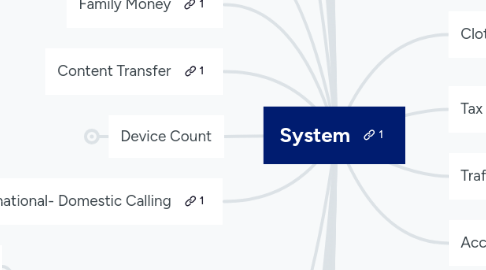
1. Add-Ons
1.1. Disney+
2. Apple Forever
2.1. Omni
2.1.1. Search bar
2.1.1.1. Order Number of Person
2.1.1.1.1. View Documents
2.2. Box
2.2.1. Label
3. Bonuses 10%/ Monthly Goals
3.1. Bonuses paid 2nd Check of Month
3.2. New Lines 25 (2%)
3.3. CORE, Pull Through 22/100 Phones (2%)
3.3.1. Tablets, Watches
3.3.2. Phones Not Included
3.4. TMP 80%/ Handset (2%)
3.5. Accessory Profit $55/ Handset (2%)
3.6. Conversion Rate 21% (2%)
3.7. Verizon Rewards
4. Block Numbers
5. Gift Card Purchase
6. Plan Change
6.1. Prepay to Post-Pay
6.1.1. Omni
6.1.1.1. New Customer Add-in
6.2. Upgrade
6.2.1. Plan First (Backdate)
6.2.2. Then Phone
6.3. Downgrade
6.3.1. Phone First
6.3.2. Then Plan (Future Date)
6.4. International Traveling
7. Compensation Pay Structure
8. Home Internet
8.1. 4G LTE
8.2. InfoManager Resources
8.3. 5G Home ordering (Omni)
8.4. RQ RingOut Process
9. BYOD Activation
9.1. New Customers Import
9.1.1. IMEI
9.1.2. Account Number
9.1.2.1. PIN
9.1.3. $35 Activation Fee
9.1.4. MyVerizon
9.1.4.1. Autopay
9.1.5. Gift Card Redemption
9.1.6. Screen Protector Warrenty
10. Conversion
11. Family Money
12. Content Transfer
13. Device Count
13.1. Inventory Tab Count Sheet New Count Sheet WZ854 Under category - select equipment Under count - switch to all Select Today Generate Save Non-Committed Start Counting PlugIn device Import from device Check and confirm you scanned all the devices and nothing is missing Save Committed Clear Scanner Barcode list Unplug Scanner
14. International- Domestic Calling
15. Device Troubleshooting
15.1. SIM Card Swap
15.2. Network Reset
15.3. Settings Reset
15.4. Back Up Phone
15.5. Factory Data Reset
15.6. Tech Support
15.7. Warranty Replacement (Asurion)
16. Insurance
16.1. TMP/ VZP SKU's (RQ)
16.1.1. TMP and VZP MD When ringing out VZP/TMP MD NEW, there will always be a quantity tracker sku as well. The quantity tracker can be modified to reflect the number of devices you sold today, or that have been activated on the account within the last 30 days as long as you have not already rung out TMP/VZP for them In the instance where you sell TMP/VZP single, and then change the account over to Multi Device, you MUST return the single line policies in RQ in exchange for the Multi Line policy. We won't get paid for both, so let's solve the problem before it becomes one There is a different Quantity Tracker Sku for TMP vs VZP. If you search for Quantity Tracker in the sku lookup tool the description should be obvious which is which. Selecting the incorrect one will definitely affect your VZP % on the KPI report VZP and TMP Single You will always have two skus when selling a single device policy. One is aa Total Mobile Protection or Verizon Protect w/tmp SKU and the other is a Total Mobile Protection or Verizon Protect w/tmp SPF. One is your quantity, while the other is your profit ALL Protection If you don't see a sku titled Declined Protection, or you see one that says Decline Protection (Dropped) AND there isn't a TMP/VZP sku automatically integrated, then that means you have to add it manually. Refer to the tips above to make sure you are including all necessary skus What to search for to find the right skus TMP - search "Total Mobile" TMP MD - search "TMP Multi" VZP single or MD - search "Verizon Protect"
16.2. Verizon Protect Home/ Tech Coach
16.3. Phone Replacement
16.3.1. TMP Insurance Claim Assurion (888-881-2622) PhoneClaim.com
17. Damaged D-Fills
18. Leads
18.1. Chatterspot
18.1.1. Thank You Card
18.2. Opportunities
18.2.1. RQ
18.2.1.1. Salesforce PO Appointments Manual Leads
18.2.1.1.1. Zoho
18.2.1.1.2. Microsoft Dynamics 365
18.2.2. Lead Engage Omni- Tool Links
18.2.2.1. Leads InfoGraphic
18.2.2.1.1. Lead Generation Activities
18.2.2.2. Remarks
19. DPP Lookup/ Agreement
19.1. Customer Agreement Printout
19.1.1. RQ
19.1.1.1. Customer Invoice
19.1.1.1.1. Tracking Number (PhoneType Number)
19.1.2. Omni
19.1.2.1. Order Search
19.1.2.1.1. Click Order Number
19.2. Omni
19.2.1. Links
20. Upgrading Phone Process (OMNI)
20.1. Device Buyout First
20.2. Customer Provided Device (CPD)
20.2.1. IMEI CCID
20.3. Device ID (IMEI) SIM (CCID)
20.3.1. Double Check for Device Image
20.4. Down Payment
20.5. Existing Customer (WAA)
20.5.1. Ready? Go! Set Up
20.5.2. Omni
20.6. New Customer
20.6.1. Carrier Info
20.6.1.1. Password
20.6.1.1.1. Account Number
20.6.1.2. Paid-Off
20.6.1.2.1. Devices
20.6.1.3. Plan
21. IMEI Info
22. Line Changes
22.1. Number Port
22.2. Transferring Number to New Account
22.2.1. 1-888-832-4540
22.2.2. Omni
22.2.2.1. Transfer from Primary Account First
22.2.2.1.1. 3 Dot Menu of phone profile
22.3. Transfer PIN
22.4. Removing Line
22.4.1. CORE 888-866-6924
22.4.2. Call Customer Service 1-800-922-0204
22.4.2.1. Click to Call through Omni
23. Port-In Status (MDN)
23.1. 888-844-7095
24. Print a Label for UPS
25. PayStub
26. RDS
26.1. RDS Shipping
26.2. Consumer
26.3. Business
27. Returns
27.1. Ruturning Phone
27.1.1. Omni
27.1.1.1. Click on Device
27.1.1.1.1. Under Device info Click Return/ Exchange
27.1.2. RQ
27.1.2.1. Refund Sale
27.1.2.1.1. Phone- Restocking fee added on invoice
27.1.3. DOA Form
27.2. Return Policy
27.3. Restocking Fees
27.3.1. We have a lot of new staff members as we move into 2020, so I wanted to send out protocol for when you do a return with a restocking fee and how you go about getting that applied to the device. Anytime you charge a restocking fee, simply send me an email with the following information: Restocking Fee Invoice # Reason for the return
27.3.1.1. Email (Mike)
28. Tracking
28.1. FedEx Tracking
28.2. UPS Tracking
29. SIM Cards
29.1. eSIM
29.1.1. OST
30. Security Deposit
30.1. Customer Profile New Sale Customer Deposit Sku
31. Trade-In
31.1. RQ
31.1.1. Dropdown Arrow (Top RIght)
31.1.1.1. MDN
31.1.1.1.1. Trade- In credit will be credited to next month's bill.
31.1.2. Customer's Profile
31.1.2.1. Intergrated services tab
31.1.2.1.1. Click Reference Number
31.1.2.2. Reports Tab
31.1.2.2.1. Sales By Invoice
31.2. Apple Forever
31.2.1. Select Upgrade Option
31.2.1.1. "Pay up" Option
32. Transfers/ Orders
32.1. ICONIC Online (Customer Specific) Delivery
32.1.1. Request
32.1.1.1. Omni
32.1.1.1.1. Fullfillment Order
32.1.2. Create Sale
32.1.2.1. RQ
32.1.2.1.1. Carrier Integration
32.1.3. Accepting Delilivery
32.1.3.1. Inventory
32.1.3.1.1. Purchase Order
32.1.4. Pickup
32.1.4.1. Customer's Profile (Search Name)
32.1.4.1.1. The order should be open
32.1.5. Canceling
32.1.5.1. Make Sure Equipment is accepted in stock.
32.1.5.2. OMNI- Close the order through Order search.
32.1.5.3. RQ-
32.1.5.3.1. Create the sale if not already created.
32.2. ISPU Order (Phone In-Stock)
32.2.1. Process
32.2.1.1. Omni
32.2.1.1.1. Pickup Order (Front Page)
32.2.1.1.2. Click Ready to pick-up
32.2.1.2. RQ (Pick and Pack)
32.2.1.2.1. Notification Bubble (Top RIght)
32.2.1.2.2. Phone
32.2.2. Omni (Accepting)
32.2.2.1. Order Search
32.2.2.1.1. Order Number
32.2.2.2. Invoice
32.2.2.2.1. Create Sale
32.2.3. Notification Check (Rq)
32.2.4. Tutorial
32.2.4.1. Step 1
32.2.4.2. Step 2
32.2.4.3. Step 3
32.3. BLJ Transfer
32.3.1. Accepting
32.3.1.1. Omni
32.3.1.1.1. Scan IMEI
32.3.1.2. RQ
32.3.1.2.1. Accept Transfer
32.3.2. Customer Pickup
32.3.2.1. Omni
32.3.2.1.1. Shop
32.3.2.2. Exchange Sim From Older Phone
32.3.3. Sending
32.3.3.1. Inventory
32.3.3.1.1. Quick Ship
32.4. Accepting UPS/ FEDEX Packages
32.4.1. Tracking Number
32.4.1.1. Click Invoice Number
32.4.1.1.1. Scan IMEI
32.4.2. Copy Reference Number
32.4.2.1. Paste to Invoice Number
32.4.2.1.1. Hit Complete
32.5. Delivery Issues
32.5.1. •When you receive a delivery from UPS or FedEx please try to receive in the merchandise in a timely manner. We only have 24 hours to process any claims. •If you notice that a box is damaged or tampered with in any way when the driver delivers the package, please make him wait while you open the box and make sure that everything is in good order. •DO NOT breakdown and throw away any boxes until you have completely received in the entire order. This is very important because if you are missing any items in the box it is essential that we take pictures of the box. •Contact me right away so that we can begin the claim process and file a police report.
32.5.2. Voicecomm Accessories Outlook Email Anytime you are receiving in an accessory order into RQ and come across an accessory or accessories that were on the packing slip but NOT in the box, please make sure you are bringing that to my attention ASAP. We only have 48 hours to submit a claim for missing items. Send me an email with the following information: Subject Line: WZ Store # and Purchase Order # Body of the Email: Name and SKU # along with quantity of the missing items
32.6. Voicecom
32.6.1. Staff, Just a reminder: Anytime you are receiving in an accessory order into RQ and come across an accessory or accessories that were on the packing slip but NOT in the box, please make sure you are bringing that to my attention ASAP. We only have 48 hours to submit a claim for missing items. Send me an email with the following information: Subject Line: WZ Store # and Purchase Order # Body of the Email: Name and SKU # along with quantity of the missing items Thank you and please let me know if anyone has any questions. -Mike