
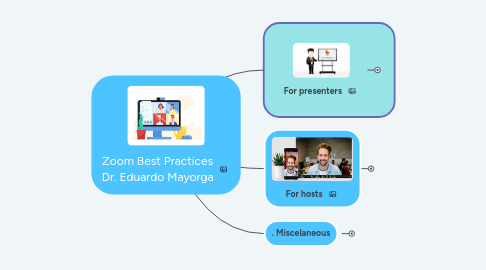
Zoom Best Practices Dr. Eduardo Mayorga

Tips and links on Zoom meetings and webinars

1. For presenters
1.1. Prepare for the meeting
1.1.1. 1. Set up your equipment
1.1.1.1. Download the Zoom desktop app and encourage guests to do the same
1.1.1.2. Decide whether you will use one monitor or two monitors
1.1.1.3. Get a headset and microphone if you have them, to reduce background noise
1.1.1.4. Test your audio and video
1.1.1.5. Review how to share your screen
1.1.1.5.1. Share you second screen move there anything you want others to see
1.1.1.6. Close unnecessary tabs in your browser and turn off notifications such as Email or messaging
1.1.1.7. Try to use a cable connection not wifi
1.1.2. 2. Look your best
1.1.2.1. Lighting should come from in front of you or from the side, in order to best light your face
1.1.2.2. Keep your background clear of distractions
1.1.2.2.1. Consider using a virtual background
1.1.2.3. Look at your webcam, not at the screen
1.1.2.4. Tips using camera YouTube
1.1.2.4.1. Lightning
1.1.2.4.2. For women (and the rest of us)
1.1.2.5. Use gestures and mannerisms that you would typically use in person
1.2. Participate productively
1.2.1. 1. Make sure everyone can hear you
1.2.1.1. Use a microphone when you speak.
1.2.1.1.1. Unless your laptop incorporated mic works well
1.2.1.2. Identify yourself to meeting attendees - say your name the first time you begin speaking.
1.2.1.3. Make sure the microphone is on and close enough to pick up your voice, no matter what location you are in.
1.2.2. 2. Help everyone focus
1.2.2.1. Don't have side conversations.
1.2.2.2. If you aren't talking, mute or turn off your microphone.
1.2.2.3. Avoid noisy activities like typing while your microphone is on.
1.2.3. 3. Reduce Distractions
1.2.3.1. Sit or stand somewhere with a neutral background (or use a virtual background).
1.2.3.2. Make sure your camera is on a steady surface to prevent shaking
1.2.3.3. Turn off your camera if you need to take care of business outside of the meeting (ex. someone in-person needs your attention). Turn the camera back on when you are present in the meeting again.
1.2.4. Screensharing
1.2.4.1. When screensharing, if you are referring to something on the screen, describe where your cursor is going or what it is that you are referring to.
1.2.4.2. Avoid saying "here" or "this" when describing something. Instead, try using more descriptive language: "Notice the box labeled 'sign in' in the upper-left corner of the home page." or "When reviewing the spreadsheet, in column H, row 34..."
1.2.4.3. Identifying what is happening on the screen increases access for everyone attending the meeting.
1.3. Interactivity with participants
1.3.1. Chat
1.3.2. Q&A
1.3.3. Hands up
1.3.4. Surveys and MCQs
1.3.4.1. For webinars
1.3.4.2. For meetings
1.3.4.3. Tips
1.3.4.3.1. Remember you can use one choice or multiple choice in your polls
2. For hosts
2.1. Security
2.1.1. Secure your Zoom meetings to prevent unwanted guests
2.1.2. Use a password or waiting room
2.1.3. Do not share the direct link publicly
2.1.3.1. Use a registarion form
2.1.3.1.1. For meetings
2.1.3.1.2. For webinars
2.2. Review your host controls and meeting settings ahead of time
2.3. Share housekeeping details with attendees
2.3.1. Remind them to mute their mics when others are presenting or speaking
2.3.2. Let them know how they can get your attention during the meeting
2.3.2.1. Lift hand
2.3.2.2. Chat
2.4. Will you be checking the chat window?
2.5. Should they unmute themselves to speak up?
2.6. Start the recording (or set up automatic recordings)
2.7. Troubleshoot audio problems if they arise
2.8. Scheduling & Customization
2.8.1. Schedule Your Webinar
2.8.2. Invitations & Registration
2.8.2.1. Panelists
2.8.2.2. Participants
2.8.3. Email Settings
2.8.4. Branding
2.8.5. Polling
2.8.6. Question & Answer
2.8.7. Integrations
2.8.8. Live Streaming Your Webinar
2.8.9. Transcriptions
3. . Miscelaneous
3.1. Editing post production
3.1.1. Screenpal
3.1.2. Camtasia
3.2. Streaming
3.2.1. YouTube
3.2.2. Facebook
3.2.3. Combine with Mentimeter
3.3. What should you use. Meetings or Webinars?
3.4. Statistics
3.5. More resources for tips
3.5.1. University of Pittsburgh
3.5.2. Generation Digital
3.5.3. Case Western Reserve
3.5.4. Zapier