
Introduction to databases. Excel and office automation for tourism and hospitality


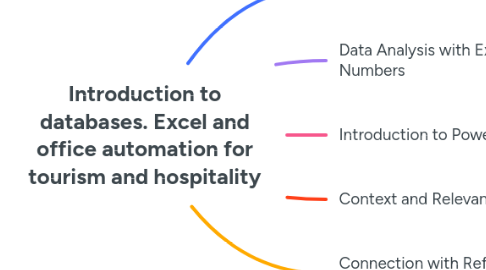
1. Database Fundamentals
1.1. Characteristics
1.1.1. Homogeneous set
1.1.2. Structured information
1.2. Structure
1.2.1. Data
1.2.2. Tables
1.3. Types
1.3.1. Relational
2. Data Analysis with Excel and Numbers
2.1. Data preparation
2.1.1. Tabular format No blank rows or columns Consistent data types per column Labeled columns (first row) Unique field name
2.2. Excel tables
2.2.1. Management and analysis of related data
2.2.2. Elements
2.2.2.1. Header row (filtering/sorting) Banded rows Calculated columns Total row (summary functions) Size handle
2.3. Creation
2.3.1. Insert table
2.3.2. Set as table
2.4. Sort data
2.4.1. Sort text (A–Z, Z–A) Sort numbers (ascending, descending) Sort dates/times (oldest to newest, newest to oldest) Sort by color/font/icon Sort by more than one column (levels) Sort one column without affecting others
2.5. Pivot tables
2.5.1. Data summary (multiple criteria)
2.5.2. Two-dimensional table
2.5.3. Dynamic (filter, change layout, etc.)
2.5.4. Creation (Insert → Pivot Table)
2.5.5. Data selection and location
2.5.6. Composition (drag fields)
2.5.7. Value functions (SUM, COUNT, AVERAGE, etc.)
2.5.8. Options (tab)
2.5.9. Show record details (double-click)
2.5.10. Apply filters
2.5.10.1. In row/column labels Filter area
2.5.11. Data source for pivot tables
2.5.11.1. Tables (automatic update) Cell range (manual update)
2.5.12. Data cache (snapshot)
2.6. Charts from pivot tables
2.6.1. Visual representation of dynamic data
2.6.2. Changes are reflected in the pivot table
2.6.3. Associated filter pane
2.6.4. Similarities with standard charts
2.6.5. Differences
2.6.5.1. Row/column orientation (dynamic labels) Chart types (limitations) Data source (based on pivot table) Format (preserved on update)
2.6.6. Creation without prior pivot table (recommended)
3. Introduction to Power BI
3.1. Business Intelligence tool (Microsoft)
3.2. Transform data into interactive visual information
3.3. Key components
3.3.1. Power BI Desktop (report/dashboard creation) Power BI Service (cloud platform for sharing) Power BI Mobile (access on mobile devices)
3.4. Importance in Business Intelligence
3.4.1. Facilitates decision-making Real-time data access (multiple sources) Interactivity (data exploration)
3.5. Power BI Desktop interface
3.5.1. Main screen
3.5.1.1. Ribbon (toolbar) Fields pane Report area Visualizations pane
3.6. Load data from Excel
3.6.1. Ensure data is well structured Get data → Excel
3.7. Data transformation with Power Query
3.7.1. Transformation and preparation engine
3.7.2. Open editor (Transform data)
3.7.3. Close and apply
3.7.4. Actions
3.7.4.1. Remove unnecessary columns Rename columns Filter data
3.8. Data analysis (visualizations)
3.8.1. Types (columns, lines, pies, tables, maps, etc.) Customization (titles, colors, labels)
3.9. Use of filters and slicers
3.9.1. Page/visualization filters Slicers for interactive filtering
3.10. Load multiple related Excel tables
3.10.1. Get data → Excel (select file) Data model (icon) Create relationships (drag and drop) Importance of relationships (cross-analysis)