


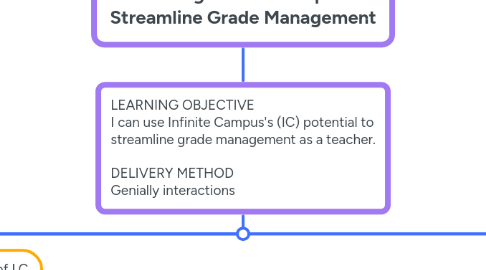
1. LEARNING OBJECTIVE I can use Infinite Campus's (IC) potential to streamline grade management as a teacher. DELIVERY METHOD Genially interactions
1.1. Icebreaker: Synchronously Acheived Online
1.1.1. The following activity is taken from Taylor & Marienau's (2016) strategy found on pages 92 - 93. The trainer starts with the question, "How many people are in this room?" Afte learners respond, the trainer answers, "There are many more." They then continue:"Recall the messages about yourselves as learners that are still with you and the people and situations you associate with them." [After a pause...] "With a piece of scratch paper and a writing tool, draw a picture of the person you envisioned. But there's a catch, you must do it with your non-dominant hand." "Here's an example of my own." [Trainer shows] "Now, you try." [Learners draw.] [After some time...] "Consider who you drew. Do they represent a positive voice or a negative voice? If they're positive, set their picture by you today as you work. If they are negative, crumple up the picture and toss it aside." "Join your breakout room and discuss who you drew and what they meant to you. Also, what you can do to generate a postive mindset for today's learning?" [Breakout sessions happen] [Learners return and share some of their final take-aways]
1.2. Introduction Video
1.2.1. Make introductory remarks. State the learning objective. Differentiate the concepts of Management vs Data Analysis: Accessing and generating graded work - VS - Evaluating student performance Preview the chunking of the course.
1.2.1.1. Formatively assess recall of information with a true/false or MC style question
1.2.1.1.1. After the initial check for understanding, a slide is presented that includes clickable options to choose a learning path. The options are Initial Setup of IC, Display Optimization, or Student Reports.
1.3. Intitial Setup of I.C.
1.3.1. The slide opens with a brief audio introduction and a clickable menu featuring these subtopics: "Favorites," "Grade Calculation Options," "Non-Campus Assignment Defaults," and the "Add Assignment" function.
1.3.1.1. The slide opens to a video modeling the use of "Grade Calculation Options." There is a hotspot that learners can click to practice using this feature.
1.3.1.1.1. Once the above hotspot is clicked, an IC image with new hotspots appears. Using these hotspots, learners can walk through the process of navigating "Grade Calculation Options."
1.3.1.2. The slide opens to a video modeling the use of "Non-Campus Assignment Defaults." There is a hotspot that learners can click to practice using this feature.
1.3.1.2.1. Once the above hotspot is clicked, an IC image with new hotspots appears. Using these hotspots, learners can walk through the process of navigating"Non-Campus Assignment Defaults"
1.3.1.3. The slide opens to a video modeling the use of the "Add" assignment functions create comments, links, teacher notes, and score releases. There is a hotspot that learners can click to practice using this feature.
1.3.1.3.1. Once the above hotspot is clicked, an IC image with new hotspots appears. Using these hotspots, learners can walk through the process of navigating the functions "create comments", "links," "teacher notes," and "score releases."
1.4. Display Optimization
1.4.1. The slide opens to a brief audio introduction and a clickable menu featuring these subtopics: "Pass/Fail ColoringSettings," "Sort," and the "Expanded View" feature.
1.4.1.1. The slide opens to an interactive image with call-out text instructing learners to change the "Pass/Fail Coloring Settings" checkboxes for active students, grade colors, and score colors.
1.4.1.2. The slide opens to an interactive image with call-out text instructing learners to modify the"Sort" setting
1.4.1.2.1. When the learners finish the three subtopics, they must take the Genially formative assessment. Incorrect answers will provide feedback stating what their incorrect choice does. If Genially allows students to try answers multiple times. this feature will be enabled. The final slide of the formative assessment will have a home button that returns learners to the menu of learning options.
1.4.1.3. The slide opens to an interactive image with call-out text instructing learners to use the expand view feature.
1.5. Student Reports
1.5.1. The slide opens to a brief audio introduction and a clickable menu featuring these subtopics: change "Filter"option to "ScoreFlag" as missing, and the"Student Summary Report."
1.5.1.1. The slide opens to a video modeling changing the "Filter"option to "ScoreFlag" as missing. There is a hotspot that learners can click to practice using this feature.
1.5.1.1.1. Once the above hotspot is clicked, an IC image with new hotspots appears. Using these hotspots, learners can walk through the process of changing the "Filter"option to "ScoreFlag" as missing.
1.5.1.2. The slide opens to a video modeling how to produce a "Student Summary Report" There is a hotspot that learners can click to practice using this feature.
1.5.1.2.1. Once the above hotspot is clicked, an IC image with new hotspots appears. Using these hotspots, learners can walk through the process to produce a "Student Summary Report"