

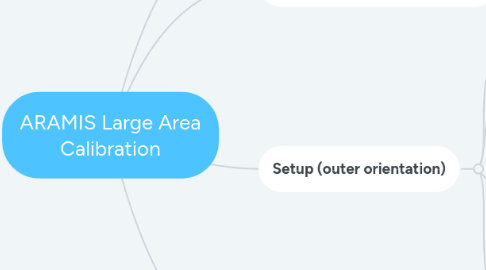
1. Setup (inner orientation)
1.1. Goal
1.1.1. Determine inner orientation of each camera
1.2. Equipent
1.2.1. 2x ARAMIS cameras 1x Calibration cross
1.3. Setup
1.3.1. Cameras
1.3.1.1. ∙ Stay close together
1.3.1.2. ∙ Aligned in parallel
1.3.1.3. ∙ Focused on infinity (or on planed working distance)
1.3.1.4. ∙ Cross should fill the whole image
1.3.1.5. ∙ Aperature as planed for the measurement
1.3.2. Calibration cross
1.3.2.1. ∙ Positioned in front of cameras
1.3.2.2. ∙ As close as possible (points should be recognizable)
1.4. Software
1.4.1. ARAMIS 2017 (and higher)
1.4.1.1. 1. Capture a image series of the calibration cross in various positions. Use the procedure described in the manual.
1.4.1.1.1. Hints:
1.4.1.2. 2. Export the image series (File – Export – All Active Stages as Image series)
1.4.2. TRITOP 2017 (and higher)
1.4.2.1. Left Camera
1.4.2.1.1. 1. Create new project
1.4.2.1.2. 2. Add image series from hard disk
1.4.2.1.3. 3. Chose temperature, focal length and reference point type
1.4.2.1.4. 5. Repeat for second scale bar IDs: 312/318 ("Distance 2")
1.4.2.1.5. 6. Select all images in folder „cam0“ (left camera)
1.4.2.1.6. 7. Recalculate project
1.4.2.2. 4. Add a scale bar Type: User-defined coded, IDs: User-defined, ID 302 and 309, Length on calibration cross ("Distance 1")
1.4.2.3. Right Camera
1.4.2.3.1. Repeat steps for image series of right camera
1.4.2.3.2. 1. Create new measurement series
1.4.2.3.3. 2. Choose an independent measurement series
1.4.2.3.4. 3. Add images series from right camera („cam1“)
1.4.2.3.5. 4. Reclaculate project
1.4.2.4. Export calibration of left camera
1.4.2.4.1. 1. Edit creation of measurement series
1.4.2.4.2. 2. Camera tab - Edit camera calibration
1.4.2.4.3. 3. Export („Left camera.calib“)
1.4.2.4.4. 4. Repeat for right camera („Right camera.calib“)
2. Setup (Measuring point cloud)
2.1. Goal
2.1.1. Determine point cloud for large calibration object
2.2. Equipment
2.2.1. 1x TRITOP camera
2.3. Setup
2.3.1. ∙ Prepare a large field with coded (and uncoded) markers
2.3.2. ∙ The complete planed ARAMIS measurement volume should be covered by markers
2.3.3. ∙ Size of the marker has to fit to planed ARAMIS measurement volume
2.4. Software
2.4.1. TRITOP 2017 (and higher)
2.4.1.1. 1. Determine at least two scales between coded markers
2.4.1.1.1. Info: the scale should fit to the measurement volume
2.4.1.2. 2. Use TRITOP to measure all markers
2.4.1.3. 3. Save Project („ARAMIS Calibration“)
3. Setup (outer orientation)
3.1. Goal
3.1.1. Determine outer orientation of each camera
3.2. Equipment
3.2.1. 2x ARAMIS cameras
3.3. Setup
3.3.1. ∙Cameras positioned as planed for the measurement (Lenses must not be changed anymore, otherwise the inner orientation has to be determined again!)
3.3.2. ∙Cameras should see the previously measured coded and uncoded markers
3.4. Software
3.4.1. ARAMIS 2017 (and higher)
3.4.1.1. 1. Take one reference image
3.4.1.2. 2. Export the images (File – Export – All Active Stages as Image series)
3.4.2. TRITOP 2017 (and higher)
3.4.2.1. 1. Open previously saved TRITOP project („ARAMIS Calibration“)
3.4.2.2. 2. Disable Auto-recalculation
3.4.2.3. 3. Create new measurement series
3.4.2.4. 4. Choose „dependent measurement series“
3.4.2.5. 5. Choose correct focal length
3.4.2.6. 6. Import reference image of left camera
3.4.2.7. 7. Repeat for right camera
3.4.2.7.1. a. Create new dependent measurement series
3.4.2.7.2. b. Choose correct focal length
3.4.2.7.3. c. Import reference image of right camera
3.4.2.8. 8. Edit creation of measurement series for left camera
3.4.2.9. 9. Go to camera – edit camera calibration
3.4.2.10. 10. Import („Left camera.calib“)
3.4.2.11. 11. Repeat on measurement series of right camera and import („Right camera.calib“)
3.4.2.12. 12. Recalculate project
3.4.2.12.1. (Use this only once when everything is completely set up otherwise the calculation could fail)
3.4.2.13. 13. Export Sensor calibration (File – Export – Sensor Calibration)
3.4.2.14. 14. Save file („Sensor.calib“)
4. Measurement
4.1. For ARAMIS 2017
4.1.1. 1. Capture images as before without the right calibration
4.1.2. 2. Export these images
4.1.3. 3. Import them with the right calibration "Sensor.calib" (File – Import –3D Image Series …)
4.2. For ARAMIS 2018 and higher
4.2.1. 1. Create new project
4.2.2. 2. Import calibration (Acquisition – Sensor – Calibration – Import Calibration)
4.2.3. 3. Go to Acquisition workspace and start measuring like with a standard sensor (measuring sequences, deformation tracking, …)