

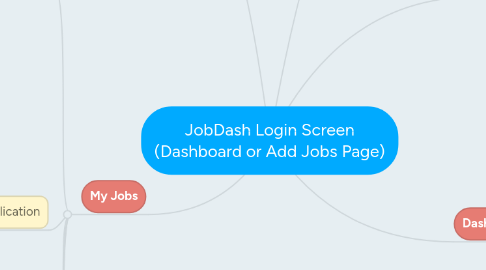
1. Add Jobs
1.1. Indeed, SimplyHired, ZipRecruiter
1.1.1. Add Job
1.1.2. More Information
1.1.2.1. Links Out to Job Board
1.2. Add Jobs Manually, with a link, or by e-mail
2. My Jobs
2.1. Research & Apply
2.1.1. All
2.1.2. Research Jobs
2.1.2.1. Add Research
2.1.2.1.1. Research
2.1.2.1.2. Documents
2.1.2.1.3. Application
2.1.2.1.4. Add Interview
2.1.2.1.5. Add Offer Details
2.1.3. Add Professional Documents
2.1.3.1. Upload Resume
2.1.3.2. Upload Cover Letter
2.1.3.3. Create JobDash Resume
2.1.4. Apply
2.1.4.1. Depending on how you apply, it either has you apply on JobDash, or links out to the job.
2.1.4.1.1. Profile becomes your Resume
2.1.5. View Company On LinkedIn
2.1.6. View Company on GlassDoor
2.2. My Application
2.2.1. See All
2.2.2. Follow up
2.2.3. Applications Awaiting Response
2.3. My Interviews
2.3.1. Scheduled Interviews
2.3.2. Assess Interviews Attended
2.3.3. Follow Up
2.3.4. Awaiting Response
2.4. My Offers
2.4.1. See All
2.4.2. Rejected Offers
2.5. Favorites
2.6. All
2.7. Closed
3. Dashboard
3.1. Add Jobs
3.2. Research Jobs (Research And Apply Tab on My Jobs Page)
3.3. Apply for Jobs (My Applications tab on My Jobs Page)
3.4. Interview For Jobs (My Interviews tab on My Jobs Page)
3.5. Go To Profile (Profile Page)
3.6. Go To Coaching (Coach Tab)
3.7. Job Links
3.7.1. Job Info
3.7.1.1. Links Out to Job Application or Requires User Manual Input