

1. Introduction Screen
1.1. Visuals
1.1.1. Show studio logo animation for 5 seconds
1.1.1.1. Show studio animation
1.1.2. Skip studio animation button
1.1.2.1. Neutral state
1.1.2.2. Mouse over state
1.1.2.2.1. Button highlighted
1.1.2.3. Hit state
1.1.2.3.1. Button blinks once
1.2. Sound
1.2.1. BGM for studio animation
1.2.2. Skip studio animation button
1.2.2.1. Mouse over sound fx
1.2.2.2. Hit sound fx
1.3. Usability
1.3.1. Logo contrast from background
1.4. Functionality
1.4.1. Pressing skip studio animation button goes to Title screen and plays enter Title screen transition animation
2. Title Screen
2.1. Visuals
2.1.1. Enter Title screen transition animation
2.1.1.1. Graphics fades in from blackness
2.1.1.2. Words fly in etc.
2.1.2. Game logo graphics (not font)
2.1.3. Background graphics
2.1.4. Copyright statement
2.1.5. Start game button
2.1.5.1. Neutral state
2.1.5.2. Mouse over state
2.1.5.2.1. Button highlighted
2.1.5.3. Hit state
2.1.5.3.1. Button rapidly blinks/animation
2.1.6. Options button
2.1.6.1. Neutral state
2.1.6.2. Mouse over state
2.1.6.2.1. Button highlighted
2.1.6.3. Hit state
2.1.6.3.1. Button blinks once
2.1.7. Credits button
2.1.7.1. Neutral state
2.1.7.2. Mouse over state
2.1.7.2.1. Button highlighted
2.1.7.3. Hit state
2.1.7.3.1. Button blinks once
2.1.8. Exit Title screen transition animation
2.1.8.1. Title screen breaks into blackness
2.2. Sound
2.2.1. BGM
2.2.2. Start game button
2.2.2.1. Mouse over sound fx
2.2.2.2. Hit sound fx
2.2.3. Options button
2.2.3.1. Mouse over sound fx
2.2.3.2. Hit sound fx
2.2.4. Credits button
2.2.4.1. Mouse over fx
2.2.4.2. Hit sound fx
2.3. Usability
2.3.1. Buttons are big and contrast from background
2.3.2. Logo at one thirds of the screen
2.3.3. Logo size takes a quarter of the screen
2.3.4. Logo contrast from background
2.4. Functionality
2.4.1. Pressing start game button plays exit Title screen transition animation, UI shows, plays start stage screen transition animation
2.4.2. Pressing options button changes to Option screen
2.4.3. Pressing credits button plays exit Title screen transtition animation and enter Credits screen transition animation
3. Gameplay Screen
3.1. UI
3.1.1. Visuals
3.1.1.1. Hp bar/icons
3.1.1.1.1. Hp increase feedback animation
3.1.1.1.2. Hp decrease feedback animation
3.1.1.2. Skill/Mp bar/icons
3.1.1.2.1. Skill/Mp increase feedback animation
3.1.1.2.2. Skill/Mp decrease feedback animation
3.1.1.3. Switch skill icons
3.1.1.4. Show score
3.1.1.5. Show money/credits with icon
3.1.1.6. Show collectables with icon
3.1.1.6.1. Obtaining collectables feedback animation
3.1.1.7. Show character getting damaged number with animation
3.1.1.8. Show enemy getting damaged number with animation
3.1.1.9. Character emotions icons
3.1.2. Usability
3.1.2.1. Hp bar/icons contrast from all background
3.1.2.2. Skill/Mp bar/icons contrast from all background
3.1.2.3. Hp and Skill/Mp height 1/5 and length 1/3 of screen
3.1.2.4. Switch skill icons contrast from all background
3.1.2.5. Score contrast from all background
3.1.2.6. Money/credits with icon contrast from all background
3.1.2.7. Collectables with icon contrast from all background
3.1.2.8. Damage number contrast from all background
3.1.2.9. UI at rules of thirds
3.1.2.10. UI in consideration of user reading order
3.1.3. Functionality
3.1.3.1. Hp bar/icon increase/decrease from healing/damage
3.1.3.2. Skill/Mp bar/icon increase/decrease from replenish/use
3.1.3.3. Skill icons can be switched/toggled
3.1.3.4. Score able to change/update
3.1.3.5. Money/credits able to change/update
3.1.3.6. Collectables able to change/update
3.2. In-game
3.2.1. Design
3.2.1.1. Level 1 map layout with enemies placement
3.2.1.2. Level 2 map layout with enemies placement
3.2.1.3. Level 3 map layout with enemies placement
3.2.2. Visuals
3.2.2.1. Character asset
3.2.2.1.1. Start stage animation
3.2.2.1.2. Idle state with animation
3.2.2.1.3. Walk state with animation
3.2.2.1.4. Jump state with animation
3.2.2.1.5. Fall state with animation
3.2.2.1.6. Damaged state with animation
3.2.2.1.7. Dying state with animation
3.2.2.1.8. Attack state(s) with animation(s)
3.2.2.1.9. Air attack state(s) with animation(s)
3.2.2.1.10. Status effect state(s) with animation(s)
3.2.2.1.11. Invincibility animation
3.2.2.2. Collectables graphics
3.2.2.2.1. Collectables neutral state special fx animation
3.2.2.2.2. Collectables getting collected special fx animation
3.2.3. Sound
3.2.3.1. BGM
3.2.3.2. Character attack sound fx
3.2.3.3. Character successful attack sound fx
3.2.3.4. Character collects collectables sound fx
3.2.3.5. Character heals sound fx
3.2.4. Usability
3.2.4.1. Character centralised in middle column
3.2.4.2. Character at along lower line of rules of thirds
3.2.4.3. Sufficient space on sides for player to see enemies/obstacles
3.2.4.4. Invincibility last for 3 seconds
3.2.5. Functionality
3.2.5.1. Character movement and action correspond to correct keys pressed
3.2.5.2. Character hp decreases according to damage number shown when hit
4. Pause Screen
4.1. Visuals
4.1.1. Gameplay screen darkens
4.1.2. Pause caption
4.1.3. Instructions to unpause
4.1.4. Resume button
4.1.4.1. Neutral state
4.1.4.2. Mouse over state
4.1.4.2.1. Button highlighted
4.1.4.3. Hit state
4.1.4.3.1. Button blinks once
4.2. Sound
4.2.1. Resume button
4.2.1.1. Mouse over sound fx
4.2.1.2. Hit sound fx
4.3. Usability
4.3.1. Pause caption is big and contrast from background
4.3.2. Instructions are big and contrast from background
4.3.3. Pause caption at rules of thirds
4.3.4. Pause caption size takes 1/6 of screen
4.3.5. Button is big and contrast from background
4.4. Functionality
4.4.1. Pressing resume key brings back to Gameplay screen
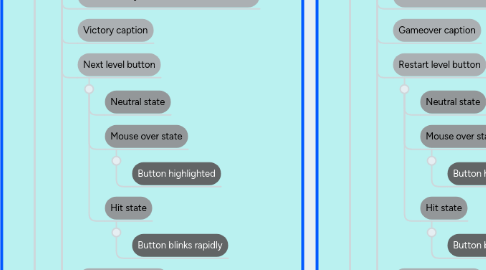
5. Victory Screen
5.1. Visuals
5.1.1. Enter Victory screen transition animation
5.1.2. Victory caption
5.1.3. Next level button
5.1.3.1. Neutral state
5.1.3.2. Mouse over state
5.1.3.2.1. Button highlighted
5.1.3.3. Hit state
5.1.3.3.1. Button blinks rapidly
5.1.4. Back to title button
5.1.4.1. Neutral state
5.1.4.2. Mouse over state
5.1.4.2.1. Button highlighted
5.1.4.3. Hit state
5.1.4.3.1. Button blinks rapidly
5.1.5. Background graphics
5.1.6. Show score
5.1.7. Show collectables with icons
5.1.8. Exit Victory screen transition animation
5.2. Sound
5.2.1. BGM
5.2.2. Next level button
5.2.2.1. Mouse over sound fx
5.2.2.2. Hit sound fx
5.3. Usability
5.3.1. Buttons are big and contrast from background
5.3.2. Victory caption at rules of thirds
5.3.3. Victory caption size takes 1/5 of screen
5.3.4. Caption contrast from background
5.3.5. Score contrast from background
5.3.6. Collectables with icon contrast from background
5.4. Functionality
5.4.1. Pressing next level button plays exit Victory screen transition animation and start stage screen transition animation
5.4.2. Pressing back to title button plays exit Victory screen transition animation and enter Title screen transition animation
6. Gameover Screen
6.1. Visuals
6.1.1. Enter Gameover screen transition animation
6.1.2. Gameover caption
6.1.3. Restart level button
6.1.3.1. Neutral state
6.1.3.2. Mouse over state
6.1.3.2.1. Button highlighted
6.1.3.3. Hit state
6.1.3.3.1. Button blinks rapidly
6.1.4. Back to title button
6.1.4.1. Neutral state
6.1.4.2. Mouse over state
6.1.4.2.1. Button highlighted
6.1.4.3. Hit state
6.1.4.3.1. Button blinks rapidly
6.1.5. Background graphics
6.1.6. Exit Gameover screen transition animation
6.2. Sound
6.2.1. BGM (no loop)
6.2.2. Restart level button
6.2.2.1. Mouse over sound fx
6.2.2.2. Hit sound fx
6.2.3. Back to title button
6.2.3.1. Mouse over sound fx
6.2.3.2. Hit sound fx
6.3. Usability
6.3.1. Buttons are big and contrast from background
6.3.2. Gameover caption at rules of thirds
6.3.3. Gameover size take 1/5 screen
6.3.4. Caption contrast from background
6.4. Functionality
6.4.1. Pressing restart level button plays exit Gameover screen transition animation and start stage screen transition animation
6.4.2. Pressing back to title button plays exit Gameover screen transition animation and enter Title screen transition animation
7. Credits Screen
7.1. Visuals
7.1.1. Enter Credits screen transition animation
7.1.2. Show names and roles
7.1.3. Show source credit
7.1.4. Back button
7.1.4.1. Neutral state
7.1.4.2. Mouse over state
7.1.4.2.1. Button highlighted
7.1.4.3. Hit state
7.1.4.3.1. Button blinks once
7.1.5. Background graphics
7.1.6. Exit Credits screen transition animation
7.1.6.1. Fades into blackness
7.2. Sound
7.2.1. BGM
7.2.2. Back button
7.2.2.1. Mouse over sound fx
7.2.2.2. Hit sound fx
7.3. Usability
7.3.1. Button is big and contrast from background
7.3.2. Back button at lower left/right of screen
7.4. Functionality
7.4.1. Pressing back button plays exit Credits screen transition animation and enter Title screen transition animation
8. Level 1 - Tutorial
8.1. Visuals
8.1.1. UI
8.1.1.1. Show movement instructions with keys icons
8.1.1.2. Show action/attack instructions with keys icons
8.1.1.3. Show objectives instructions
8.1.2. In-game
8.1.2.1. Enemy asset(s)
8.1.2.1.1. Idle state with animation
8.1.2.1.2. Walk state with animation
8.1.2.1.3. Jump state with animation
8.1.2.1.4. Fall state with animation
8.1.2.1.5. Damaged state with animation
8.1.2.1.6. Dying state with animation
8.1.2.1.7. Attack state(s) with animation(s)
8.1.2.1.8. Status effect state(s) with animation(s)
8.1.2.2. Character asset
8.1.2.2.1. Attack special fx feedback animation
8.1.2.3. Obstacles assets
8.1.2.4. Background layer 1 graphics
8.1.2.5. Background layer 2 graphics
8.1.2.6. Gameplay level
8.1.2.6.1. Ground graphics
8.1.2.6.2. Platform graphics
8.2. Sound
8.2.1. BGM
8.2.2. Enemy attack sound fx
8.2.3. Enemy successful attack sound fx
8.2.4. Character collects collectables sound fx
8.3. Usability
8.3.1. Movement instructions with keys icons contrast from all background
8.3.2. Action/attack instructions with keys icons contrast from all background
8.3.3. Objectives instructions contrast from all background
8.3.4. Instructions can capture attention of player
8.3.5. Instructions do not obstruct gameplay
8.3.6. 2 or less fonts used
8.4. Functionality
8.4.1. Background layer 1 scrolling according to character movement
8.4.2. Background layer 2 scrolling according to character movement
8.4.3. Gameplay level
8.4.3.1. Ground scrolling according to character movement
8.4.3.2. Platform scrolling according to character movement
8.4.4. Enemy A.I able to move
8.4.5. Enemy A.I able to attack/action
8.5. Design
8.5.1. Level layout
8.5.1.1. Enemies placement
8.5.1.2. Collectables placement
8.5.1.3. Obstacles placement
8.5.2. Increasing difficulty
8.5.3. Placement balance
8.5.4. Introduction to new mechanics
8.5.5. Consistent theme
9. Level 2
9.1. Visuals
9.1.1. UI
9.1.1.1. Show new mechanics instructions
9.1.1.2. Show objectives instructions
9.1.2. In-game
9.1.2.1. Enemy asset(s)
9.1.2.1.1. Idle state with animation
9.1.2.1.2. Walk state with animation
9.1.2.1.3. Jump state with animation
9.1.2.1.4. Fall state with animation
9.1.2.1.5. Damaged state with animation
9.1.2.1.6. Dying state with animation
9.1.2.1.7. Attack state(s) with animation(s)
9.1.2.1.8. Status effect state(s) with animation(s)
9.1.2.2. Character asset
9.1.2.2.1. Attack special fx feedback animation
9.1.2.3. Obstacles assets
9.1.2.4. Background layer 1 graphics
9.1.2.5. Background layer 2 graphics
9.1.2.6. Gameplay level
9.1.2.6.1. Ground graphics
9.1.2.6.2. Platform graphics
9.2. Sound
9.2.1. BGM
9.2.2. Enemy attack sound fx
9.2.3. Enemy successful attack sound fx
9.2.4. Character collects collectables sound fx
9.3. Usability
9.3.1. New mechanics instructions contrast from all background
9.3.2. Objectives instructions contrast from all background
9.3.3. Instructions can capture attention of player
9.3.4. Instructions do not obstruct gameplay
9.3.5. 2 or less fonts used
9.4. Functionality
9.4.1. Background layer 1 scrolling according to character movement
9.4.2. Background layer 2 scrolling according to character movement
9.4.3. Gameplay level
9.4.3.1. Ground scrolling according to character movement
9.4.3.2. Platform scrolling according to character movement
9.4.4. Enemy A.I able to move
9.4.5. Enemy A.I able to attack/action
9.5. Design
9.5.1. Level layout
9.5.1.1. Enemies placement
9.5.1.2. Collectables placement
9.5.1.3. Obstacles placement
9.5.2. Progressive difficulty
9.5.3. Placement balance
9.5.4. Introduction to mechanics extension/ new mechanics
9.5.5. Consistent theme
10. Level 3
10.1. Visuals
10.1.1. UI
10.1.1.1. Show new mechanics instructions
10.1.1.2. Show objectives instructions
10.1.2. In-game
10.1.2.1. Enemy asset(s)
10.1.2.1.1. Idle state with animation
10.1.2.1.2. Walk state with animation
10.1.2.1.3. Jump state with animation
10.1.2.1.4. Fall state with animation
10.1.2.1.5. Damaged state with animation
10.1.2.1.6. Dying state with animation
10.1.2.1.7. Attack state(s) with animation(s)
10.1.2.1.8. Status effect state(s) with animation(s)
10.1.2.2. Character asset
10.1.2.2.1. Attack special fx feedback animation
10.1.2.3. Obstacles assets
10.1.2.4. Background layer 1 graphics
10.1.2.5. Background layer 2 graphics
10.1.2.6. Gameplay level
10.1.2.6.1. Ground graphics
10.1.2.6.2. Platform graphics
10.2. Sound
10.2.1. BGM
10.2.2. Enemy attack sound fx
10.2.3. Enemy successful attack sound fx
10.2.4. Character collects collectables sound fx
10.3. Usability
10.3.1. New mechanics instructions contrast from all background
10.3.2. Objectives instructions contrast from all background
10.3.3. Instructions can capture attention of player
10.3.4. Instructions do not obstruct gameplay
10.3.5. 2 or less fonts used
10.4. Functionality
10.4.1. Background layer 1 scrolling according to character movement
10.4.2. Background layer 2 scrolling according to character movement
10.4.3. Gameplay level
10.4.3.1. Ground scrolling according to character movement
10.4.3.2. Platform scrolling according to character movement
10.4.4. Enemy A.I able to move
10.4.5. Enemy A.I able to attack/action
10.5. Design
10.5.1. Level layout
10.5.1.1. Enemies placement
10.5.1.2. Collectables placement
10.5.1.3. Obstacles placement
10.5.2. Progressive difficulty
10.5.3. Placement balance
10.5.4. Introduction to mechanics extension/ new mechanics
10.5.5. Consistent theme