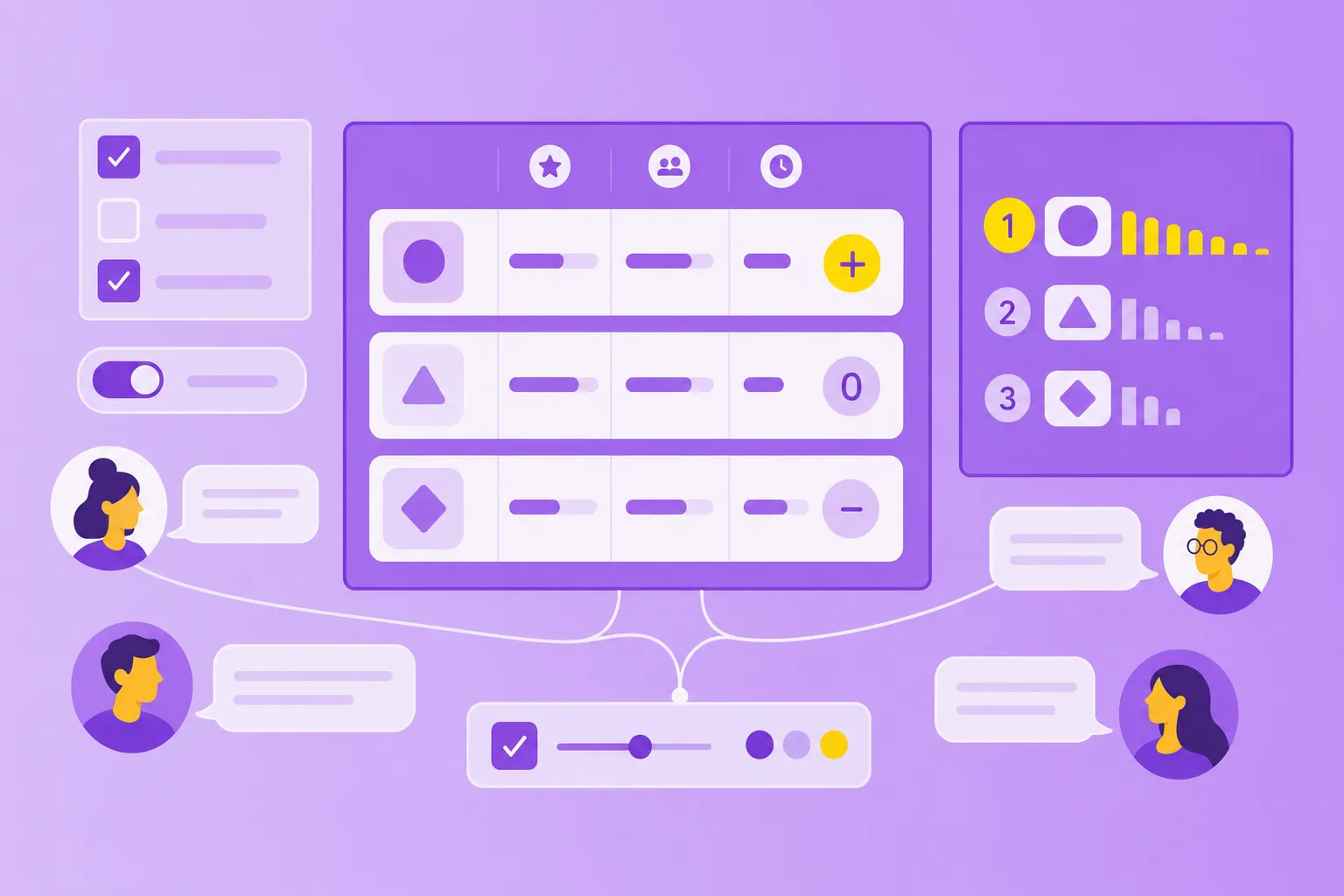


What is an online mind map and why is it useful?
An online mind map works like a digital thought map. Imagine being able to spread your ideas across an infinite canvas – that's exactly what an online mind map makes possible. Unlike notes on paper, you work directly in your browser without installing any software.
Key terms briefly explained:
Mind map: A diagram with a central topic in the middle, from which branches extend to subtopics
Online mind map: A cloud-based version that you can use from any device and share with others
Mind mapping: The method of visually organizing ideas and making connections visible
Unlike traditional pen-and-paper mind maps, online versions let you rearrange branches freely, undo changes instantly, and search across hundreds of topics. The flexibility means you never have to start over when your thinking shifts direction. Most online mind mapping tools also offer keyboard shortcuts for rapid entry, so your ideas land on the canvas as fast as you can type them.
Why are online mind maps so practical? They help you organize the chaos in your head. When brainstorming with mind maps, you collect wild ideas – the mind map brings structure to them later. Complex projects suddenly become manageable when you break them down visually. And the best part: your team can collaborate from anywhere.
The main advantages at a glance:
Visual thinking: You grasp connections at a glance and maintain an overview of complex topics
Location-independent work: You work from anywhere – on desktop, tablet, or smartphone
Collaboration: Teams can work simultaneously on a mind map and exchange ideas in real-time
Typical applications range from project planning to learning summaries with mind maps to meeting minutes. In the next section, we'll take a closer look at these use cases.
Benefits of mind maps for brainstorming and planning
The visual structure activates both brain hemispheres simultaneously – you think more creatively and analytically at the same time. This makes them the perfect tool for various tasks.
Brainstorming and idea development works particularly well with mind maps. You know the situation: ideas flow freely in a meeting, but later no one remembers everything. With a mind map, you capture every thought. The structure comes later – first, you collect everything that comes to mind.
Project planning becomes clearer with mind maps. Instead of endless lists, you see at a glance which tasks are connected. A main branch shows the project phases, sub-branches show individual tasks. This way, you keep track of dependencies and responsibilities.
The main areas of application:
Brainstorming: Collect ideas quickly and unstructured – the mind map brings order to the chaos later
Project planning: Visualize all steps of a project and maintain an overview of dependencies and responsibilities
Learning: Connect new information with existing knowledge and better retain relationships in memory
Meetings and workshops also benefit from mind maps. Instead of linear minutes, a visual representation of the discussion emerges. All participants see their contributions and understand how topics are connected. After a team meeting with mind maps, everyone has the same picture in mind.
Online tools like MindMeister expand these possibilities. Real-time collaboration connects teams across distances. Presentation mode transforms your map into an engaging presentation. And task integration ensures that ideas become concrete actions.
When your brainstorming session produces actionable tasks, MeisterTask picks up where the mind map leaves off. Convert branches into tracked tasks with one click, assign owners, set due dates, and follow through in kanban boards. The combination of MindMeister for thinking and MeisterTask for doing keeps your workflow seamless from idea to execution.
Step by step to your first mind map
Creating a mind map online is easier than you might think. The following steps show you how to create your first mind map with MindMeister – an intuitive mind map maker. The basic principles also apply to other tools like Miro or Lucidchart.
1. Choose a central topic
Every good mind map begins with a clear center point. Choose a topic you want to explore – such as "New Website," "Vacation Planning," or "Book Idea." This central topic forms the heart of your mind map.
In MindMeister, you can either create a blank mind map and fill it manually. The central topic automatically appears in the center of the screen. Click on it and type in your topic. Keep it short and concise – details go in the branches. You can also create your mind map in MindMeister with the help of AI.
2. Add main branches
From your central topic, you now create the main branches. These represent the most important subtopics or categories. For project planning, these could be "Goals," "Budget," "Team," and "Timeline."
Click on the central topic and press the Tab key. A new branch appears. Enter your text and press Enter. Repeat this for additional main branches. Three to seven main branches are a good start – enough structure without being overwhelming.
3. Create sub-branches
Now it gets more detailed. To each main branch, you add sub-branches. These contain specific information, tasks, or ideas. From the main branch "Team," sub-branches could lead to individual people or roles.
Select a main branch and press Tab. The new sub-branch appears automatically. You can add as many levels as you want – your map grows with your thoughts.
4. Use colors and icons
Colors and symbols don't just make your mind map prettier – they also help with understanding. Use colors to separate topic areas or mark priorities. Icons clarify at a glance what something is about.
When you click on a branch or element in MindMeister, the menu bar appears directly above it. Here you'll find color palettes and a large selection of icons. Maybe a calendar symbol for appointments or a light bulb for ideas? Choose what fits your topic.
5. Final review and fine-tuning
Your first mind map is almost ready. Look at the big picture. Are all important points included? Is the structure logical? Move branches by drag-and-drop if something fits better elsewhere.
MindMeister automatically saves all changes. Click "Share" to share the map with others, or use "Export" for PDF or image files. Your mind map is now ready for use.
A mind map is a living document, not a finished product. Return to it as your project evolves, add new branches when fresh information arrives, and archive completed sections. This iterative approach turns a simple brainstorm into a reliable reference that grows alongside your work. Teams especially benefit from revisiting shared mind maps during weekly check-ins to track progress and surface blockers early.
How teams use an online mind map together
Online tools like MindMeister were specifically developed for collaboration – unlike paper mind maps or desktop software. Teams work together on ideas, regardless of where they are located.
1. Grant editing rights
The first step to a team mind map: invite your colleagues. In MindMeister, click the share icon and enter email addresses. You determine who can only read or also edit.
For external partners, create a sharing link. This way, even people without a MindMeister account can view or edit your map – depending on your settings.
2. Real-time comments and feedback
All changes appear immediately on all screens. You see colored cursors that show who is working where. This prevents duplicate work and encourages exchange.
Use the comment function for discussions. Click on a branch and select "Add comment." Others see the message and can reply. With @-mentions, you address team members directly.
3. Use in meetings or workshops
Mind maps transform meetings into productive work sessions. Open the map at the beginning and share your screen. All ideas are captured live – no one has to type up notes later.
MindMeister's presentation mode guides you step by step through the map. Branches unfold one after another, focus is always on the current topic. After the meeting, everyone has the same visual protocol.
Tips for better structure and visual organization
A well-structured mind map is more than just a collection of ideas – it's a visual tool that clearly presents relationships. With the right techniques, you make your mind maps even more effective.
1. Short keywords instead of long sentences
Mind maps thrive on conciseness. Use one to three words per branch – that's all you need. Instead of "We need to revise the social media strategy for the next quarter," simply write "Social Media Q2."
This brevity has a system: your brain processes keywords faster than sentences. You can add details in notes or comments. The mind map remains clear and scannable.
2. Use color coding
Colors are your organizational system. Assign each main topic its own color – all associated sub-branches get the same color in lighter tones. This creates visual groups that the eye can easily grasp.
A proven color scheme:
Red: Urgent or important
Green: Completed or positive
Blue: Information or background
Yellow: Ideas or open questions
3. Embed symbols and images
Icons reinforce the message of your branches. A phone symbol immediately shows: this is about a call. A question mark marks open points. These visual anchors help with quick comprehension and memory.
MindMeister offers a large icon library. But you can also upload your own images – such as logos, product photos, or screenshots. This makes your mind map even more individual and meaningful.
Turn branches into tasks
A mind map captures the big picture, but projects need next steps. Select any branch in MindMeister and convert it into a MeisterTask task without leaving the canvas. The task inherits the branch text as its title, and you can assign it, set a deadline, and track it on a board. This bridge between visual planning and task management means no idea gets lost between the brainstorm and the to-do list.
Give your ideas structure
You've seen: online mind maps are more than colorful diagrams. They are thinking tools that can change your way of working. The visual structure makes complex topics tangible. Real-time collaboration connects teams across distances. And the simple operation ensures you can start immediately.
The best time for your first mind map? Now! Try it with your next project. Collect ideas for a blog post. Plan your next vacation. Or structure the content of a presentation. The possibilities are endless – and getting started costs nothing.
Start your first mindmap for free now!