

What a concept map is and how it differs from a mind map
Imagine being able to make all the connections of a topic visible on a single sheet of paper—that's exactly what a concept map does. It shows concepts (in circles or boxes) and connects them through labeled lines that explain how the concepts relate to each other. Each of these connections forms a proposition—a complete thought that reads like a sentence.
You may already be familiar with mind maps from school or from brainstorming. The difference between a concept map and a mind map lies primarily in the structure:
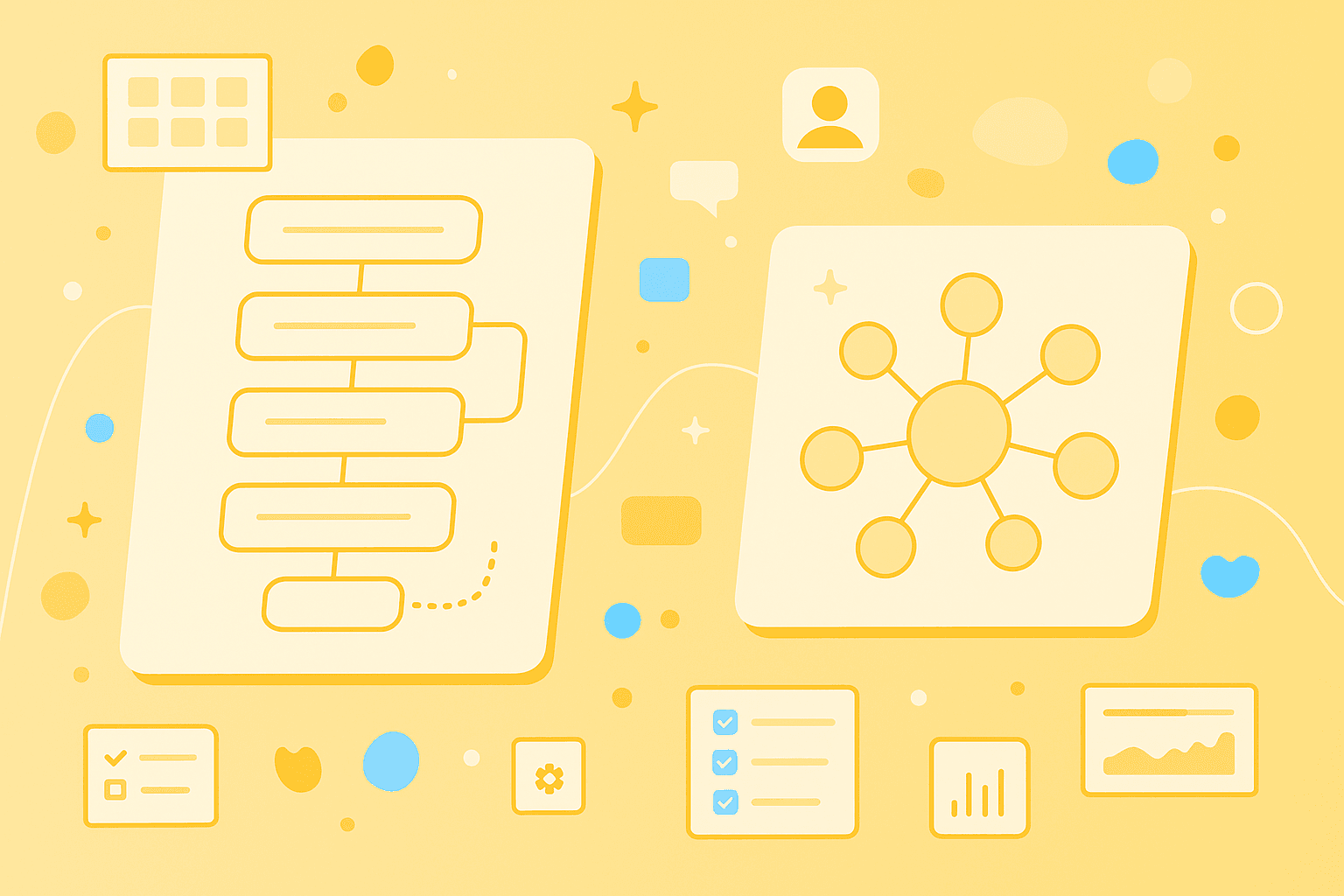
Concept Map: Builds hierarchically from top to bottom, with general concepts at the top and specific details further down. What makes them special are the labeled connections—they show exactly how two concepts relate to each other.
Mind Map: Has a radial structure like a sun with rays. A central topic sits in the middle, and all ideas branch out from it. The connections are usually unlabeled and only show that a connection exists.
Both methods have their strengths. Concept maps are particularly well-suited when you want to understand complex relationships and explain them to others—for example in science, learning, or strategic planning in companies.
Why MindMeister is suitable for concept maps
MindMeister makes creating concept maps easier than ever before. Here are the practical advantages you can use right away:
Cloud-based: Your concept maps are always with you—whether you're sitting at your computer or checking on your smartphone on the go
Real-time collaboration: Work simultaneously with others on the same map—perfect for group work or team brainstorming
Flexible layouts: Choose between different structures, depending on what works best for your concept map
Visual design: With colors, symbols, and various themes, you make connections recognizable at a glance
Attachments and notes: Add additional documents, links, or explanations to each concept
Easy start: You can get started right away—no complicated training needed
MindMeister combines the strengths of mind maps with the requirements of modern concept maps. This way, you can think in a structured way while working creatively at the same time.
First dteps in the dashboard
Overview of the user interface
After logging into MindMeister, you land in the dashboard—your personal control center. Here you see all your mind maps as clear tiles or as a list—depending on your view preference. On the left, you'll find navigation with your own mind maps, shared mind maps, team mind maps, and favorites. Templates make creating new mind maps easier.
Creating a new map in the dashboard
You can create a new map in three simple steps:
Click on the "+" symbol to create a blank mind map.
Or choose one of the templates.
Type your main topic into the new mind map (this is also the name of your mind map).
Begin working on your concept map.
How to create your concept map step by step
It grows and develops with your understanding of the topic. Plan for multiple revisions from the start—this is completely normal and leads to better results.
1. Clarify your main topic
Every concept map begins with a clear focus question. This question is like a compass that shows you which concepts are important and which you can leave out. Good focus questions might be: "What factors influence climate change?" or "How does the human immune system work?"
In MindMeister, type your focus question or main topic into the central node. This forms the starting point for all further considerations.
2. Add main concepts
Now collect the most important concepts related to your topic. For a meaningful concept map, you usually need between 15 and 25 concepts. In MindMeister, you can add these very easily:
TAB key: Creates a sub-concept for the currently selected node
ENTER key: Adds an equal-ranking concept on the same level
The most general concepts belong at the top or closer to the center. A practical tip: First write down all the concepts that come to mind—like on a notepad. Then organize them by importance. This way you won't forget anything and maintain an overview.
3. Add subtopics and connections
This is where the big difference between concept maps and simple mind maps becomes apparent. With concept maps, you label each connection with a linking word—a word or short phrase that explains the relationship.
In MindMeister, you can implement this through floating topics and connections.
Each connection should read like a complete thought. For example: "Photosynthesis → produces → Oxygen". Make sure that only individual concepts appear in the boxes—not entire sentences. A concept should ideally consist of only 1–3 words.
4. Review hierarchy and structure
Now take a critical look at your mind map:
Are the general concepts really at the top?
Are the specific details arranged further down?
Does the hierarchy make sense when someone else reads the mind map?
In MindMeister, you can easily move concepts via drag-and-drop. Use this function generously! A concept map gets better and clearer through repeated reorganization.
5. Add cross-links
Cross-links are connections between concepts from different areas of your mind map. They show relationships that aren't obvious and often lead to new insights.
Here's how to create cross-links in MindMeister:
Select a concept
Draw a connection to a concept in another branch
Label this connection with an appropriate linking word as well
Color cross-links differently than the connections between subtopics.
In a concept map about ecosystems, a cross-link might show: "Plants → provide food for → Animals". Such cross-links make your concept map particularly valuable.
Tips for visual design and structure
A well-designed concept map is like a tidy home—you find your way around immediately and feel comfortable. The right visual design makes complex topics more understandable.
Color coding and symbols
Colors and symbols are more than just decoration. They help your brain process information faster:
Colors: Use one color per main category (such as green for "Environment", blue for "Technology")
Symbols: Use icons for visual reinforcement (a light bulb for "Idea", a warning symbol for "Risk")
These visual elements don't just make your map prettier, but also more functional. You recognize connections faster and can remember the content better.
Formatting and theme selection
MindMeister offers a practical styling toolbar with many design options. Choose a theme that fits your topic—clear, factual designs work well for scientific maps, while more playful themes are fine for creative projects.
Adjust fonts and sizes so that important concepts stand out. Use frames or colored backgrounds to mark related areas. Consistent formatting makes your map more professional and easier to read.
Integration of attachments
Sometimes short concepts aren't enough. MindMeister allows you to integrate additional information elegantly:
Notes: Add longer explanations or definitions
Attachments: Link relevant documents, PDFs, or images
Links: Add URLs to further resources
You add this additional information by clicking on a node. Then select "Add attachment" from the menu. This way your mind map stays clear while all details remain available.
Real-time collaboration and sharing
Concept maps really come alive when multiple people contribute their knowledge. Different perspectives lead to more complete and well-thought-out concept maps or mind maps. MindMeister makes this collaboration particularly easy.
Sharing and access rights
Sharing your concept map works in just a few clicks:
Click on the share icon in the top right of the map editor
Enter the email addresses of the people who should receive access
Set the access rights: Read only, edit, or full admin rights
Alternatively, you can create a sharing link. You can make this link public or protect it with a password—depending on how confidential your concept map is.
Collaboration with comments
Comments turn a static map into a dynamic working document. You can give feedback, ask questions, or have discussions—all directly at the relevant spot.
Add comments by clicking on a node and selecting "Add comment". What's special: All changes are immediately visible to everyone involved. This makes MindMeister perfect for meetings, workshops, or collaborative brainstorming where everyone can follow the progress live.
When other tools are more suitable
MindMeister is versatile, but not an all-in-one solution. For some tasks, there are specialized alternatives.
Flowcharts: If you want to represent processes with many decision points, dedicated flowchart tools are often better suited. MindMeister can show simple workflows but reaches its limits with complex branches.
Timelines: For chronological representations, there are better tools. MindMeister can display temporal sequences, but not as elegantly as specialized timeline software.
Technical Diagrams: You're better off creating UML diagrams, network plans, or architectural drawings with software developed for that purpose.
The good news: You can import screenshots or images from other tools into MindMeister. This way you combine different visualizations in one central mind map. MindMeister remains the ideal tool for mind maps, brainstorming, concept maps, or structured knowledge representation.
Let your ideas grow
You now have all the tools at hand to create meaningful concept maps. With MindMeister, you transform complex topics into clear, visual representations that everyone understands. The combination of intuitive operation and powerful features makes it the ideal companion for your knowledge work.
Create your first concept map with MindMeister